
How to Expose a Local Port to the Internet
Your service runs on localhost, but somebody outside needs to reach it — a friend, a client, a teammate, or a payment provider sending webhooks. The classic answer, port forwarding on your router, fails for a lot of people these days. Here is how to expose a local port to the internet through a tunnel: no public IP, no router settings, no network admin rights.
Why port forwarding often fails
Port forwarding assumes you have an external IP address and access to the router. In practice, one of these gets in the way:
- Shared IP and CGNAT. Your ISP hands out an address from a private range and hides hundreds of subscribers behind one external IP. There is nothing to forward — your router simply is not reachable from outside. A dedicated IP is usually a paid add-on.
- No access to the router. Dorms, offices, rented flats — nobody is giving you the admin panel.
- Mobile internet and USB modems. Almost always CGNAT, so forwarding is impossible by design.
- An open port is an open port. Forward one and your home network is exposed: scanners will find the address within hours.
A tunnel removes all four problems at once, because the connection is established from the inside out — there is nothing for the router or the ISP to block.
What a tunnel actually does
A client runs on your PC. It opens an outbound connection to a ProximaMP node and keeps it alive. The node hands you a public address like node.proximamp.com:30121 and pipes everything that arrives there into your local port. From the outside it looks like the service sits in a data centre; in reality it runs on your machine.
Traffic between your PC and the node is encrypted. Nodes currently live in Russia, so the closer you are to that region, the lower the latency — the client measures ping and picks for you. More about the product on the ProximaTunnel page.
Which protocol to pick
ProximaTunnel offers three modes, and the choice matters — not every service survives the wrong protocol.
| Protocol | Pick it when | Examples |
|---|---|---|
| TCP | You need guaranteed delivery and ordered packets | Minecraft Java, Terraria, a plain web server, SSH, RDP, databases |
| UDP | Latency matters more than a lost packet here and there | Voice chat, CS 1.6 and other GoldSrc games, Valheim, Rust, Minecraft Bedrock |
| HTTPS | A web service faces the internet and needs a valid certificate | Local site, API, webhooks, OAuth redirects, admin panel, PWA |
If you are not sure, start with TCP — it covers most cases. The differences are broken down in the protocol guides below.
Opening a port, step by step
Step 1. Install ProximaClient
Download and install the Windows client — get ProximaClient. A ProximaMP account is required for tunnels.
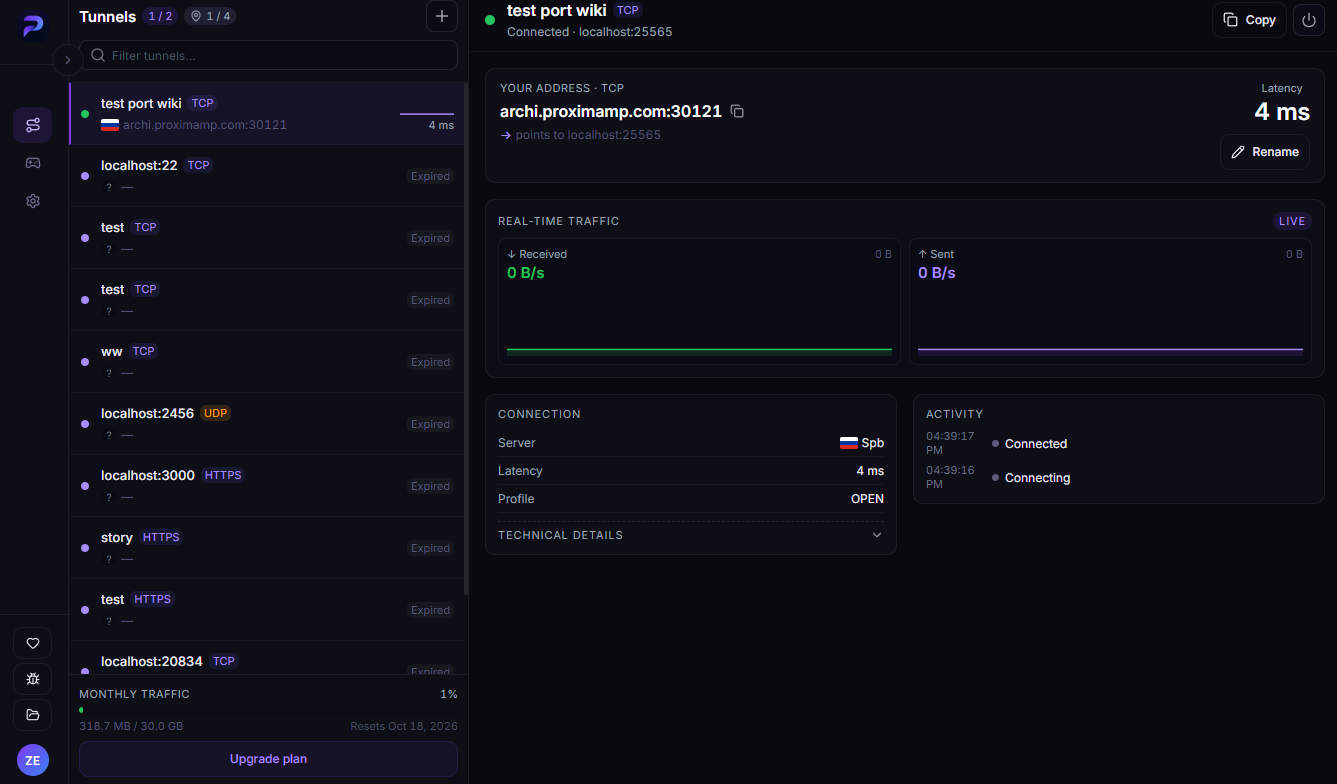
Step 2. Open the Tunnels screen
It is the first icon in the left sidebar. The header shows two counters: how many tunnels are running against your plan limit, and how many addresses are taken. The + button sits to the right of the heading.
Step 3. Create the tunnel
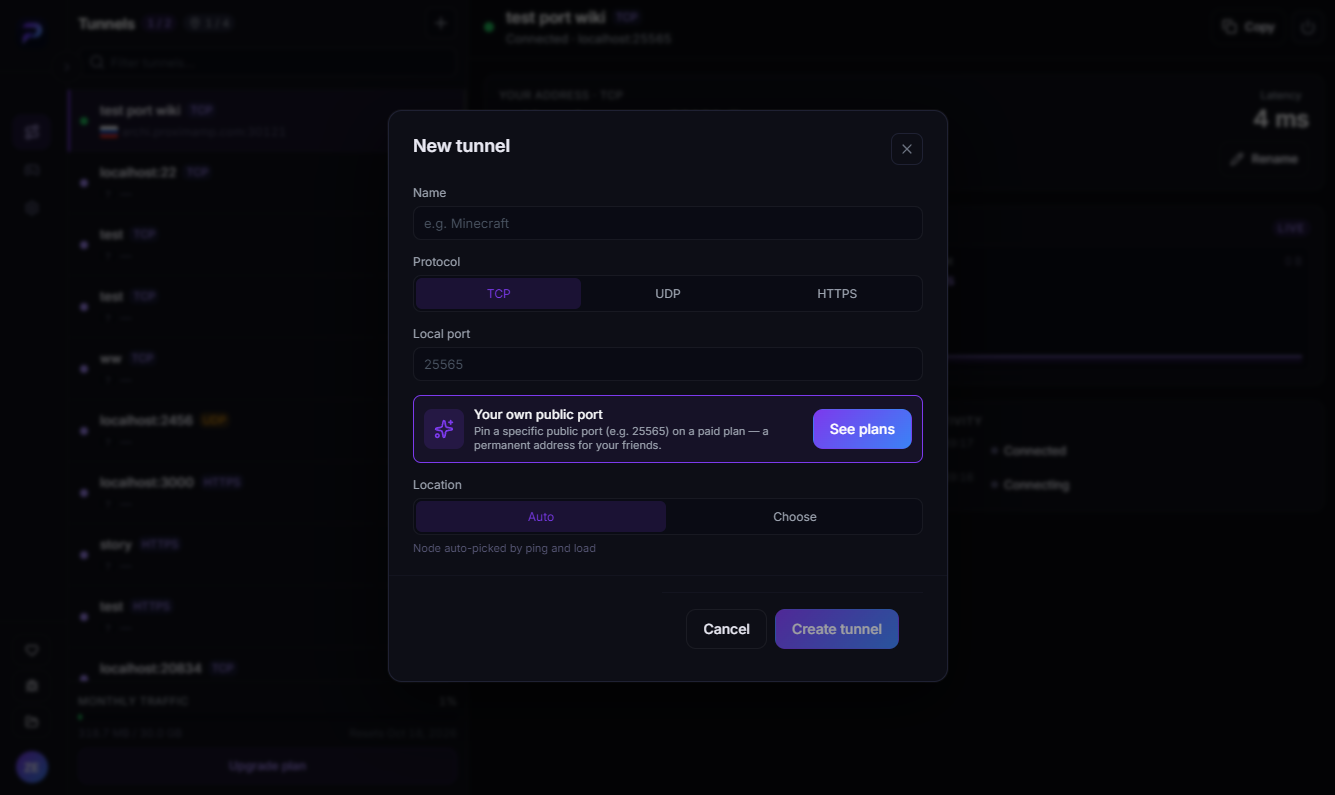
Click + to open the New tunnel dialog:
- Name — anything meaningful; this is how the tunnel appears in the list.
- Protocol — TCP, UDP or HTTPS.
- Local port — the port your service already listens on. For example
25565for a Minecraft server,3000for a dev server,22for SSH. - Location — leave it on Auto and the client picks a node by ping and load, or hit Choose and pick one yourself.
Click Create tunnel.
Step 4. Grab the public address
The tunnel shows up in the list and its card opens on the right. The Your address block holds the public address — something like node.proximamp.com:30121 — plus a line telling you which local port it feeds. Copy puts it on your clipboard; that is the address you hand out.
The same card shows latency in milliseconds, live traffic in both directions, and an activity log of when the tunnel connected.
Choosing a node manually
Switch Location to Choose and the client lists available nodes with the current ping to each. Worth doing when auto-selection misses, or when you know people will connect from one particular region.
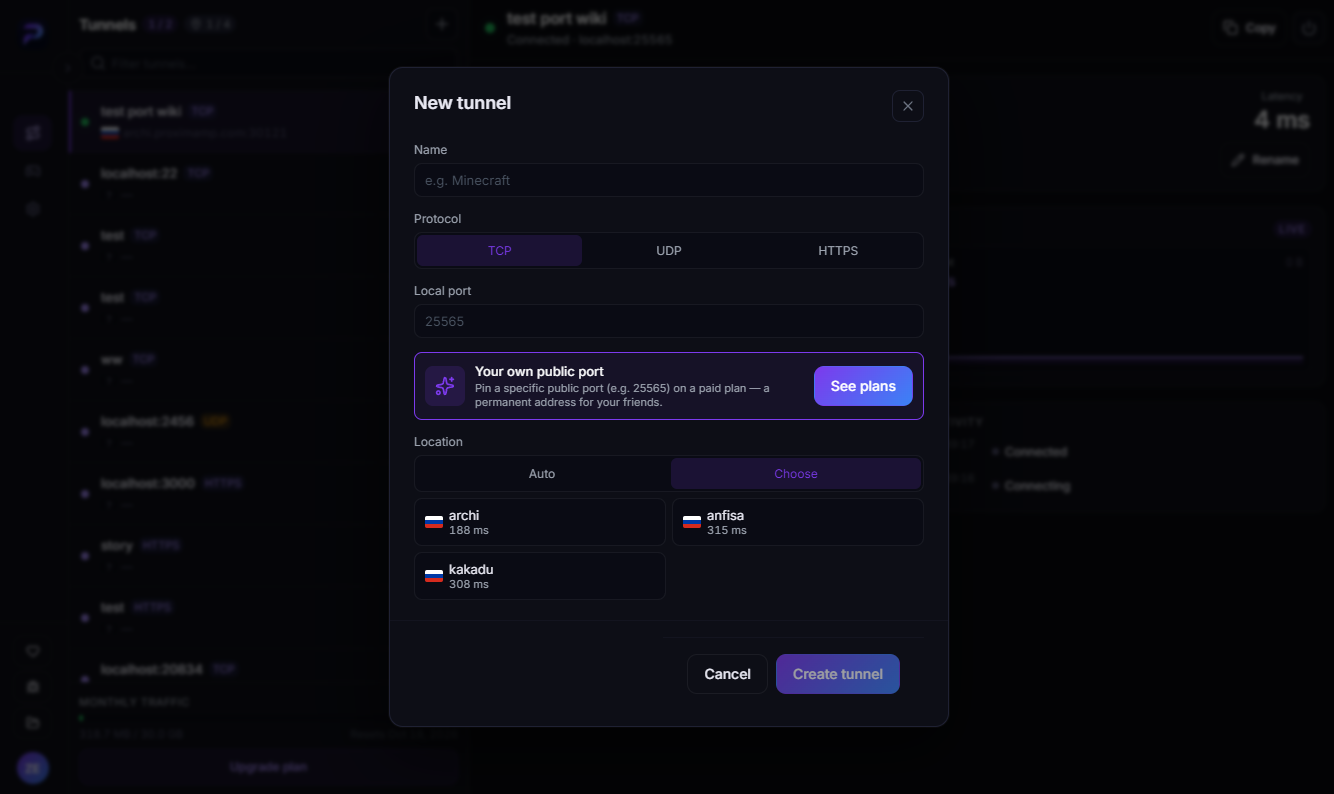
The node name becomes the first part of your public address: archi turns into archi.proximamp.com.
The address is random — and you can pin it
The external port is assigned automatically, so recreating a tunnel gives you a new address. Fine for a one-off demo, annoying when you want to hand friends an address that still works tomorrow.
The New tunnel dialog has a Your own public port block: on a paid plan you can pin a specific external port — 25565, the one Minecraft players expect, for instance — and the address stops changing. How many ports each plan lets you pin is listed on the ProximaTunnel page.
What "Expired" means in the list
When a tunnel is switched off, its address stays reserved for you for a while so you can bring the tunnel back up on the same address. How long depends on your plan. Once that window closes, the entry is marked Expired and the card reads "Reservation expired — port released".
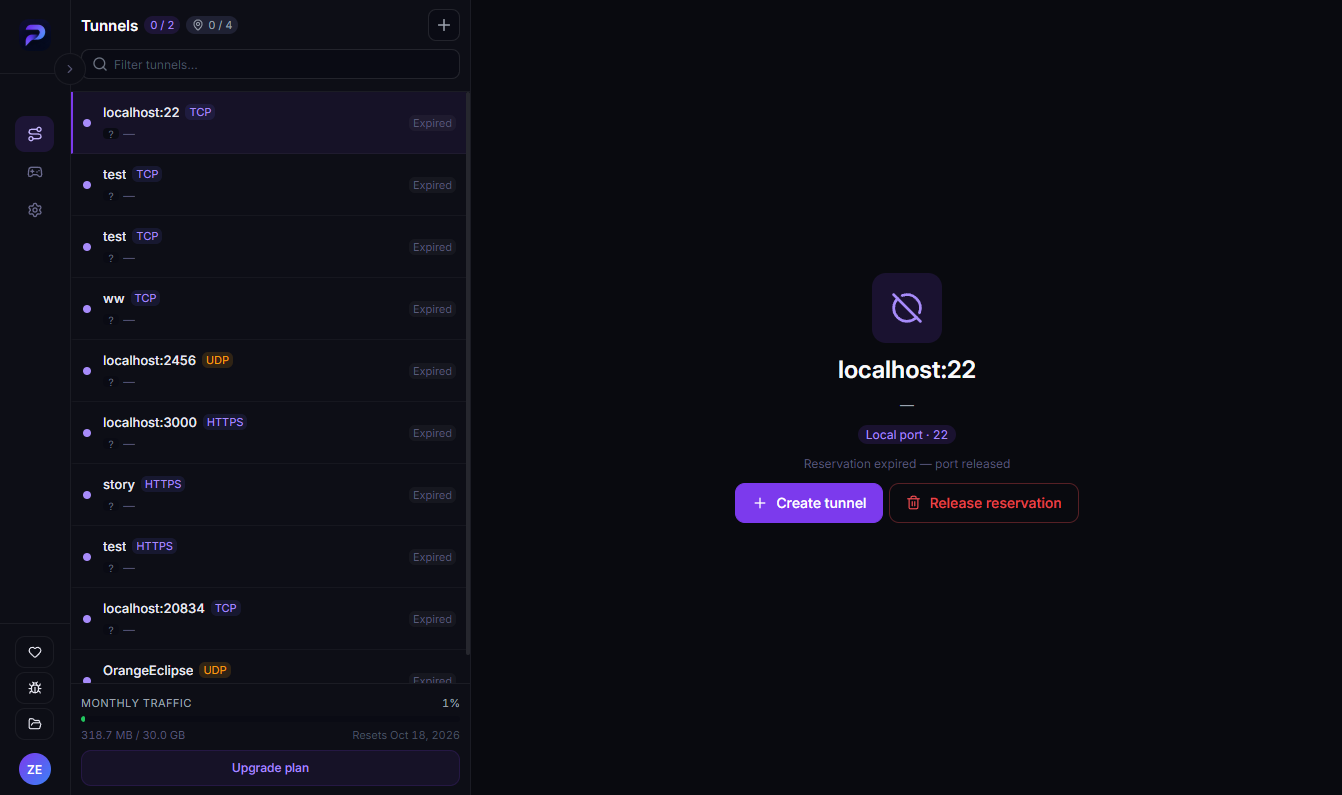
From there you have two options: Create tunnel brings it back up (with a new address), and Release reservation removes the entry and frees the address slot.
Limits
Tunnels are metered by plan: how many you can run at once, how many addresses you can hold, how much traffic per month and at what speed. The bottom of the list always shows this month's traffic and the date the counter resets. Current numbers per plan live on the ProximaTunnel page.
Protocol guides
- How to open a TCP port with a tunnel
- How to open a UDP port with a tunnel
- How to share localhost over HTTPS
Specific cases: a Minecraft server without port forwarding and creating a game server in ProximaClient, where the tunnel is switched on right as you create the server.
FAQ
Do I need a public IP? No. The tunnel makes an outbound connection and the external address comes from the ProximaMP side.
Do I have to touch my router? No — that is the whole point. No port forwarding, no DMZ, no UPnP.
Does it work on mobile internet? Yes. CGNAT blocks port forwarding, not outbound connections.
Do the people connecting need the client? No. They get an ordinary address and connect with whatever they normally use — the game, a browser, an SSH client.
Can I use my own domain? Not yet — addresses are issued on a ProximaMP domain for now. Custom domain support is in development.
The port is busy and my service will not start. That is a problem on your machine rather than the tunnel — see Failed to bind to port.
Open your port
Download ProximaClient for Windows → — a tunnel takes a couple of minutes to set up, and the starter plan is free.