
How to Share Localhost Over HTTPS
Your site or API runs on http://localhost:3000, but something outside needs it over HTTPS: a payment provider is sending webhooks, an OAuth provider refuses http://, a client wants to look at it on their phone. Here is how to share localhost over HTTPS — with a valid certificate and without touching your application.
Why HTTPS mode instead of TCP
You can push a web service out through a plain TCP tunnel — but then it is served over http:// on the outside, with everything that follows:
- the browser flags the page as Not secure;
- service workers, geolocation, camera, microphone — anything requiring a secure context — stop working, so a PWA cannot be tested;
- OAuth providers reject
http://redirect URIs; - payment systems and messengers only deliver webhooks over HTTPS.
HTTPS mode removes all of that: the tunnel's public address is served over HTTPS from the start.
A valid certificate, out of the box
The certificate is already issued for a ProximaMP domain and maintained on our side. You do not need to:
- issue and renew anything through Let's Encrypt or
certbot; - stand up a local CA with
mkcert; - craft a self-signed certificate and talk the browser into trusting it;
- change anything in your application at all.
Your service keeps serving plain HTTP on localhost. TLS terminates on the ProximaMP node: the outside world gets a real https:// with a padlock, while your app receives the ordinary HTTP it expects. Local HTTP becomes HTTPS without a line of code — that is the whole point of this mode.
What it is good for
- Webhooks. Stripe, YooKassa, GitHub, Telegram — all of them require an HTTPS endpoint. Instead of deploying to staging for one test, you hand over the tunnel address.
- OAuth and SSO. Providers reject
http://redirect URIs; a tunnel address works as is. - PWAs and service workers. They only run in a secure context, so
http://will not do — except onlocalhostitself, and from a phone it is no longer localhost. - Showing your work. To a client, a designer, a tester — with no deploy.
- Testing on a real phone. Open the address on the device and you are looking at your local build.
Sharing localhost over HTTPS
Step 1. Start your service
Dev server, backend, whatever it is — it just needs to be listening on a local port already. Note the number: 3000 for Next.js and Create React App, 5173 for Vite, 8000 for Django, 8080 for a lot of Java apps.
Step 2. Open the Tunnels screen
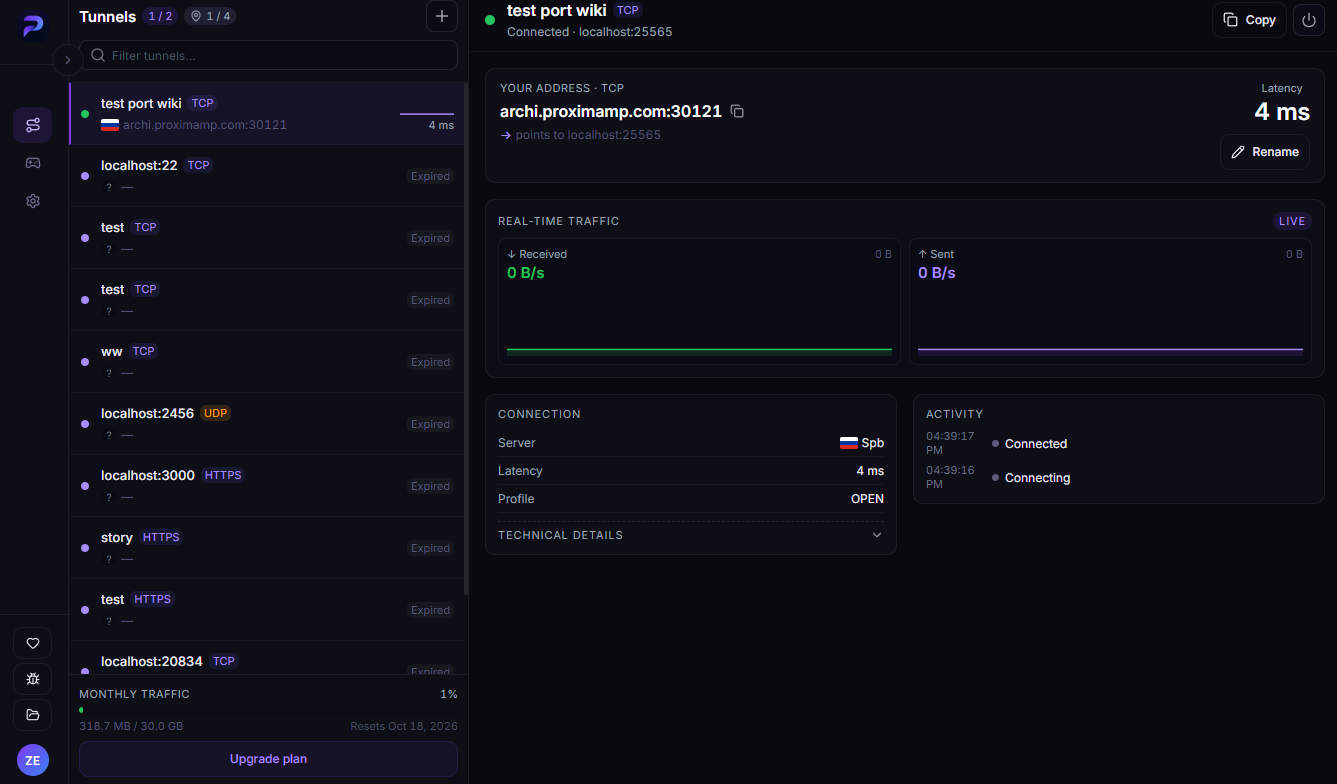
Launch ProximaClient, click the first icon in the left sidebar, then the + button.
Step 3. Fill in the New tunnel dialog
- Name — "Dev", or your project name.
- Protocol — pick HTTPS.
- Local port — your service's port,
3000for example. - Location — Auto is fine.
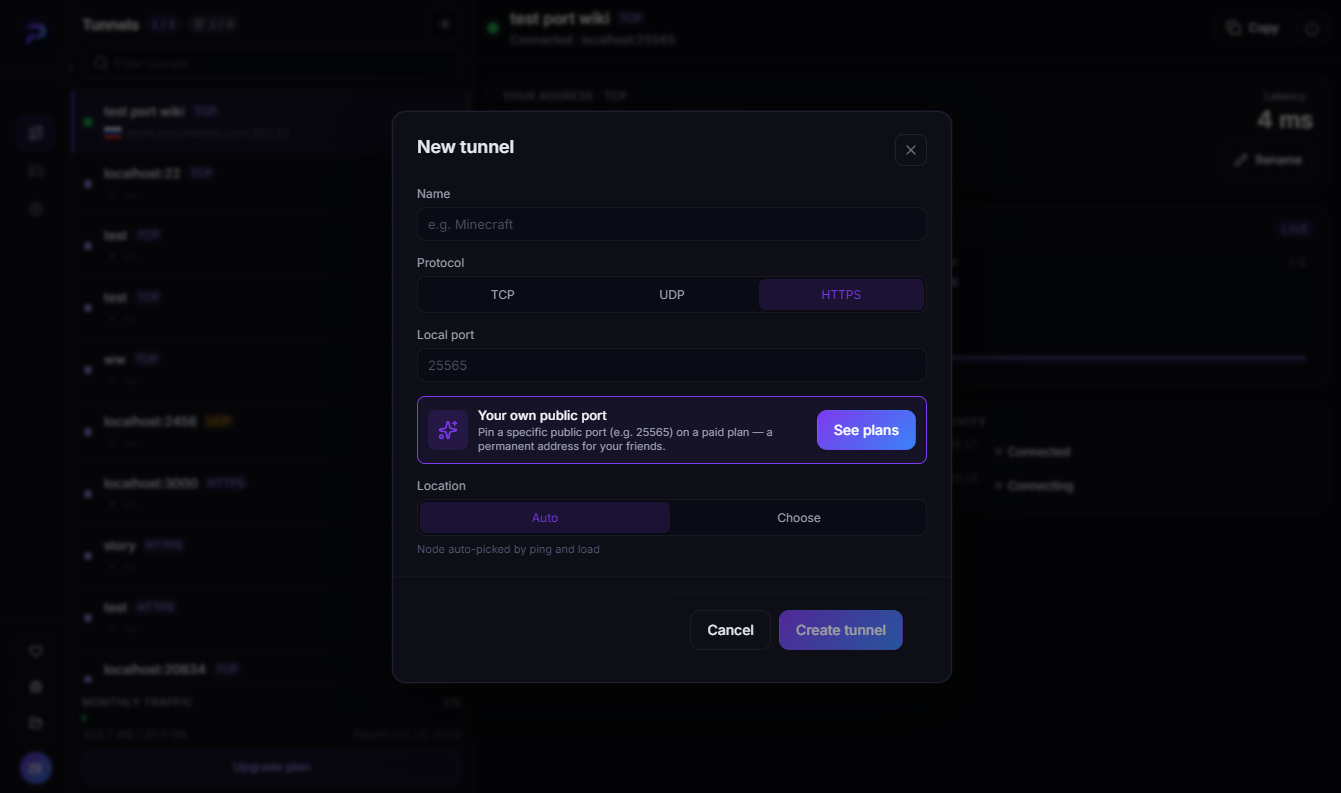
Click Create tunnel.
Step 4. Open the address
The tunnel card shows a Your address · HTTPS block with a ready link like https://archi.proximamp.com:30121 and a line telling you which local port it feeds. Hit Copy, open it in a browser, and the padlock is there immediately — no warnings.
The address comes with a port
The public address looks like https://node.proximamp.com:30121: a domain plus an automatically assigned external port. For browsers, for most webhook providers and for OAuth, that is a perfectly valid URL — a port is allowed in an HTTPS address.
Some services, though, only accept webhooks on standard ports. The best-known example is the Telegram Bot API: its setWebhook works with ports 443, 80, 88 and 8443, and will not take an arbitrary one. If you hit that wall, look at the Your own public port block in the create dialog — paid plans let you pin the external port; which ports are available on which plan is listed on the ProximaTunnel page.
Also keep in mind that without pinning, the address changes when you recreate the tunnel — and the webhook has to be re-registered with the provider.
If your app emits http:// links
Your service has no idea it is reachable over HTTPS from outside; plain HTTP is what reaches it. Frameworks that build absolute URLs — redirects, links in emails, OAuth callbacks — may fill in http:// and break the round trip.
The fix lives in the application: set the base URL explicitly (APP_URL, NEXTAUTH_URL, SITE_URL, whatever your stack calls it) and point it at the tunnel address. Nothing needs changing on the tunnel side.
FAQ
Do I have to buy a certificate? No. It is already issued and maintained on the ProximaMP side.
Whose certificate is it? It belongs to the ProximaMP domain your tunnel address is issued on.
Can I use my own domain? Not yet — addresses are issued on a ProximaMP domain for now. Custom domain support is in development.
Do I need to configure TLS in my app? No. Your app keeps running over HTTP on localhost.
Will the browser warn about the certificate? No — it is a valid certificate and an ordinary HTTPS address.
Is this suitable for production? It is a tool for development, demos and testing. A live site needs real hosting: a tunnel lives exactly as long as the client on your PC is running.
Share your localhost
Download ProximaClient for Windows → — the starter plan is free and an HTTPS address takes a couple of minutes.
Related: how to expose a local port to the internet · how to open a TCP port