
How to Open Dynmap to the Internet
Dynmap renders a map of your world and serves it as an ordinary website — but by default that website is only reachable from the machine running the server. Here is how to open Dynmap to the internet so friends can view the map from a link: no public IP, no port forwarding, and HTTPS from the start.
The whole path is four steps: server → plugin → Tunnels screen → HTTPS port 8123.
How Dynmap works
Besides rendering the map, Dynmap runs its own web server inside the Minecraft server. By default it listens on port 8123, and the map opens at http://localhost:8123. It is a regular web page: map tiles, players, chat. That page is what you want to publish.
Step 1. A server, if you do not have one yet
Dynmap is a server plugin, so you need a server that takes plugins. When creating one in ProximaClient, pick the Paper or Purpur core: both load plugins, and Purpur is Paper with extra gameplay settings. Vanilla does not support plugins at all, and Folia only loads plugins built specifically for it — which Dynmap is not.
Creating a server is walked through in how to create a game server in ProximaClient and how to create a Minecraft server.
Already have a server? Move on to the next step.
Step 2. Install the Dynmap plugin
Download it from the Dynmap page on SpigotMC — pick the build matching your core and Minecraft version.
From there it is like any other plugin: drop the .jar into the server's plugins/ folder and restart the server. More detail in how to install plugins.
Check that it came up: open http://localhost:8123 in a browser. The map should appear.
If the page is blank or will not load:
- give Dynmap time for the initial render — on a large world that is minutes, sometimes hours;
- speed it up with
/dynmap fullrenderin the server console; - check the startup log for the line about Dynmap loading.
If the map does not work locally, there is no point going further: a tunnel fixes nothing, it only forwards what already works.
Step 3. Open the Tunnels screen
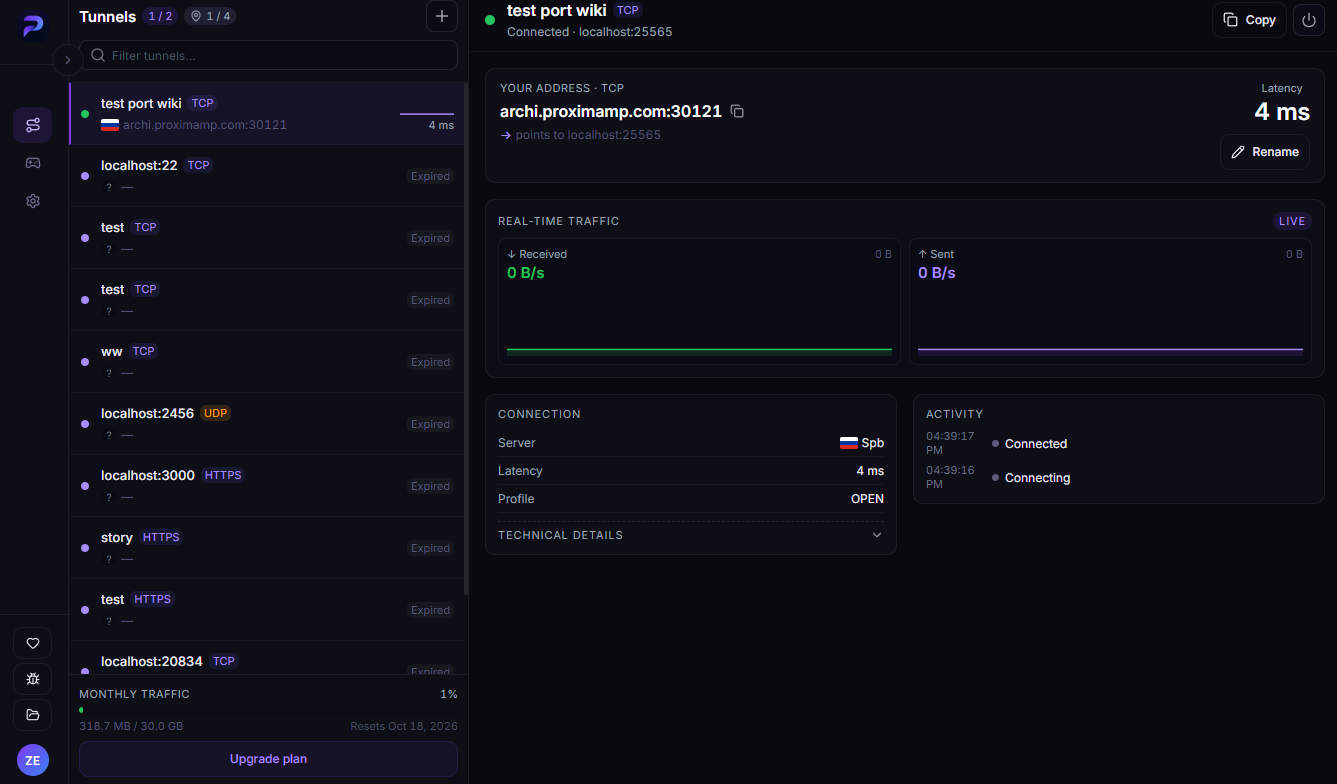
In ProximaClient that is the first icon in the left sidebar. The + button sits to the right of the heading.
Step 4. Open HTTPS port 8123
Click + and fill in the New tunnel dialog:
- Name — "Dynmap", for example.
- Protocol — HTTPS. Not TCP: Dynmap serves a web page, and in HTTPS mode the browser opens it without warnings.
- Local port — 8123, the plugin's default.
- Location — Auto.
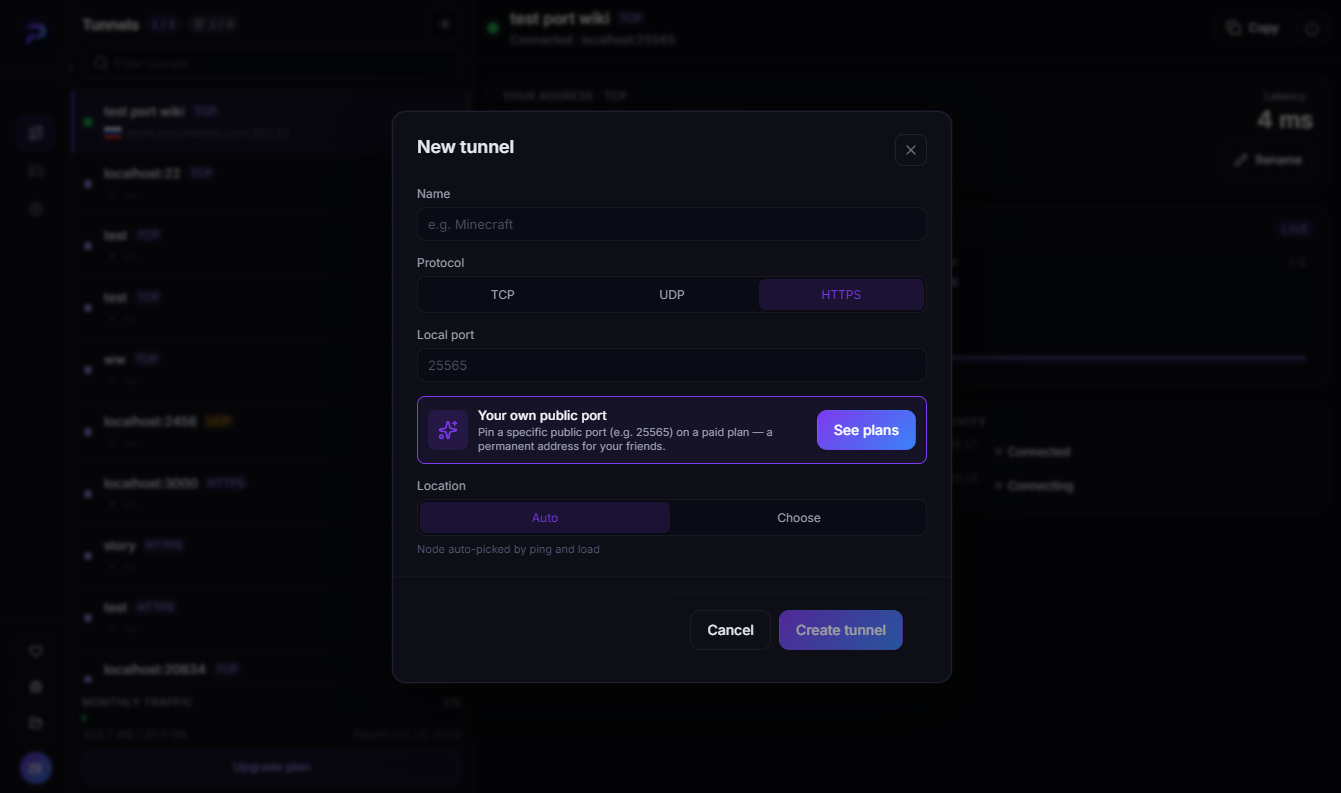
Click Create tunnel.
If you changed the map's port, use your own number. It is set by the
webserver-portline inplugins/dynmap/configuration.txt. Leave the neighbouringwebserver-bindaddressalone — the default works, since ProximaClient runs on the same machine and connects to the map locally.
Grab the link
The tunnel card shows a Your address · HTTPS block with a link like https://archi.proximamp.com:30121. Hit Copy — that is the public address of your map.
It opens in any browser, phones included. The certificate is already issued on the ProximaMP side, so the padlock is there immediately, with nothing to issue or renew. More on that in how to share localhost over HTTPS.
The map and the server are two separate tunnels
A common mix-up: the map tunnel does not let anyone onto the server, and the server tunnel does not serve the map. Different ports, different protocols:
| What you are opening | Protocol | Local port |
|---|---|---|
| Minecraft game server | TCP | 25565 |
| Dynmap map | HTTPS | 8123 |
So you need two tunnels, each taking its own slot against your plan limit — the counter is in the Tunnels screen header, and the terms are on the ProximaTunnel page. If the server was created in ProximaClient, the game tunnel is switched on right as you create it.
The map eats traffic — plan for it
Dynmap serves the map as tiles: dozens of small images per screen, with more loading on every pan and zoom. One person exploring a large world easily pulls tens of megabytes, and the map keeps updating in the background while the tab stays open.
Two consequences:
- Monthly traffic drains noticeably faster than on a game tunnel. The counter sits at the bottom of the tunnel list.
- Link speed shows up as responsiveness. On a lower-tier plan the map assembles slowly, especially on the first visit when nothing is cached.
For a small group this is a non-issue. Before dropping the link into a public chat, though, do the maths.
If the map will not open
- It does not work locally either. Go back to step 2.
- TCP was selected instead of HTTPS. The page opens over
http://flagged as Not secure. Recreate the tunnel in HTTPS mode. - Wrong port in the tunnel. Check
webserver-portinconfiguration.txt. - The server is off. Dynmap lives inside the Minecraft server: no server, no map.
- Address without the port. The external port almost never matches the local one, so copy the whole link.
- Port 8123 is taken by another program. Then Dynmap's web server never starts — see Failed to bind to port.
FAQ
Do my friends need ProximaClient? No, they just open a link in a browser.
Can I password-protect the map? Not through the tunnel — it only forwards a port. Look for access restrictions in Dynmap's own settings.
Does the address change? Yes, unless you pin the external port: recreating the tunnel gives you a new link. Pinning is a paid-plan feature, in the Your own public port block of the create dialog.
Will the map stay up when my computer is off? No. Both the server and the map live on your PC; the tunnel does not host them.
What if I use a different map plugin? Same principle: find its web interface port (BlueMap defaults to 8100) and create an HTTPS tunnel to it.
Share your map
Download ProximaClient for Windows → — the starter plan is free and a tunnel takes a couple of minutes.
Related: how to install plugins · how to share localhost over HTTPS · how to expose a local port to the internet