
How to create a Day of Defeat server in ProximaClient
Your own Day of Defeat server means World War II team battles with friends on your maps and by your rules. In ProximaClient you can set one up on your PC in a couple of minutes: no hosting to rent, no manual SteamCMD setup, no config editing. Let's go through how to create a Day of Defeat server in ProximaClient.
What you'll need
- A Windows PC and ProximaClient.
- A ProximaMP account — if you want to open the server to friends through a public tunnel.
Creating the server
- Open ProximaClient, go to the Game servers screen — the gamepad icon in the left menu — and click Add server.
- On the Game step, pick Day of Defeat and click Next.
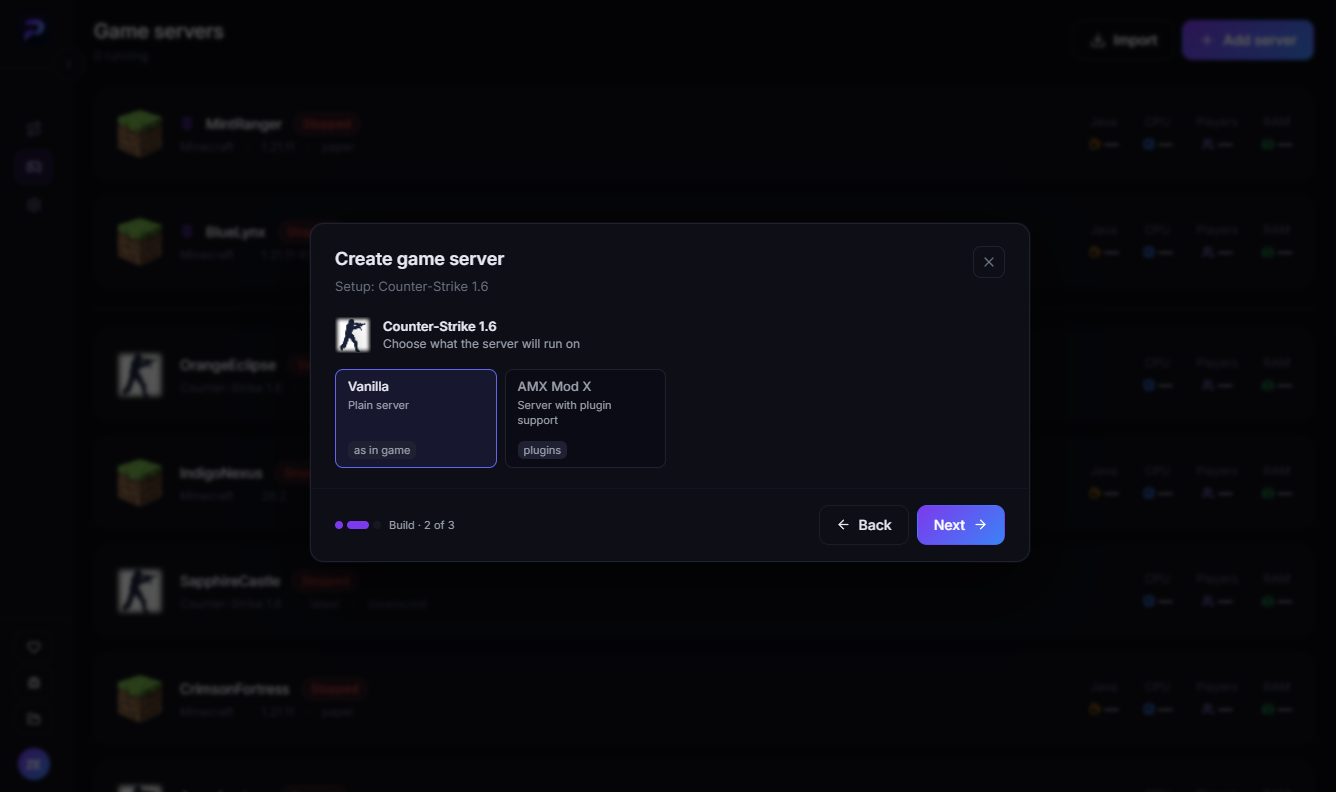
- On the Build step, choose what the server will run on and click Next:
- Vanilla — a plain server, as in the game;
- AMX Mod X — a server with plugin support: admin tools, stats, map voting and more.
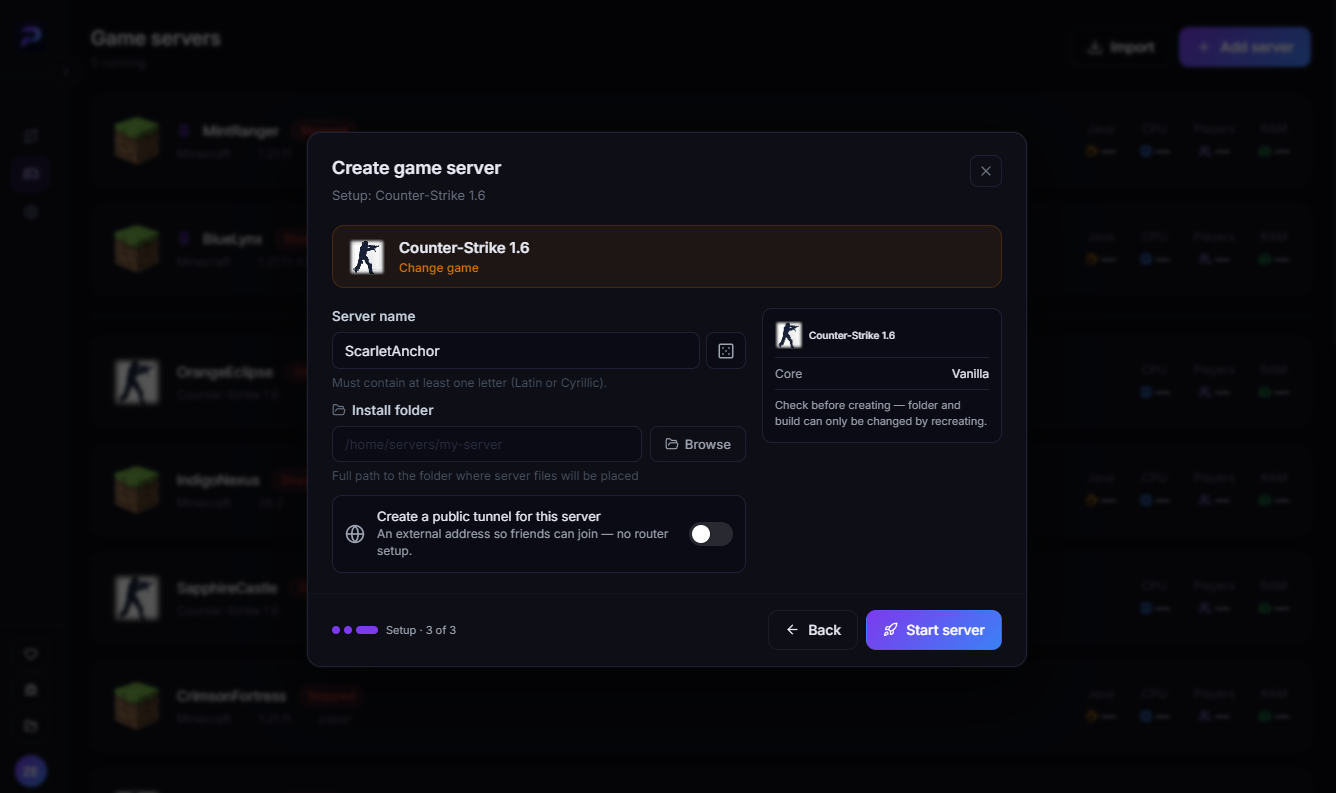
- On the Setup step, enter a server name and an install folder. So that friends can join without a public IP or router setup, turn on Create a public tunnel for this server.
- Check the summary on the right — the folder and the build can only be changed by recreating the server — and click Start server.
The Build and Setup steps for Day of Defeat work the same way as for Counter-Strike 1.6, with the same two builds. The screenshots show CS 1.6:
ProximaClient downloads the server files and starts the server for you. More about the creation window in How to create a game server in ProximaClient.
How friends join
Send your friends the server's external address — the public tunnel provides it. Then each of them launches Day of Defeat, opens the console with ~ and types the full address:
connect server_address
If the console doesn't open, add -console to the game's launch options: in Steam, open Day of Defeat's properties and put the parameter in the launch options field.
What you can configure in ProximaClient
Once the server is running, you manage it right from the app:
- AMX Mod X plugins (in the AMX Mod X build) — enable, disable and remove them on a separate tab.
- Players — the list of who's on the server right now.
- Maps — change the map and set the starting map in the launch options.
- Launch options — slots, port and address, VAC, custom parameters, auto-restart on crash and autostart with the app. The server updates to the latest version via Steam.
- server.cfg — clear fields and toggles instead of manual editing.
- Console — command hints as you type, your own quick commands and log filters.
- Scheduler — backups, restarts and console commands on a schedule.
- Server files — create and delete files and folders, an editor with syntax highlighting.
- Monitoring — real-time CPU and memory load.
All features are on the Day of Defeat server page.
FAQ
Vanilla or AMX Mod X? If you want plugins — admin tools, stats, map voting — pick AMX Mod X. For a simple game with friends, Vanilla is enough.
Can I switch from Vanilla to AMX Mod X later? The build can only be changed by recreating the server, so it's best to choose right away.
Do I need a public IP? No, if you turn on the public tunnel. It requires a ProximaMP account.
Does the server run on my computer? Yes, there's no hosting to rent.
Launch your Day of Defeat server
Download ProximaClient for Windows → — and invite your friends to your own server.