
How to add a readme to your Minecraft server
Also available in: Русский
When you hand your build or server to someone else, they need to understand what's inside and how to run it. In ProximaClient you can show a description right on the server page — from a readme.md file.
How it works in ProximaClient
- Put a
readme.md(orREADME.md) file in the root of the server folder — next toserver.properties. - An ⓘ icon appears next to the server name.
- Clicking ⓘ opens a window with the file's contents.
If you import a server that already has a readme.md, the description window pops up automatically the first time you open the server page — the person sees the instructions right away.
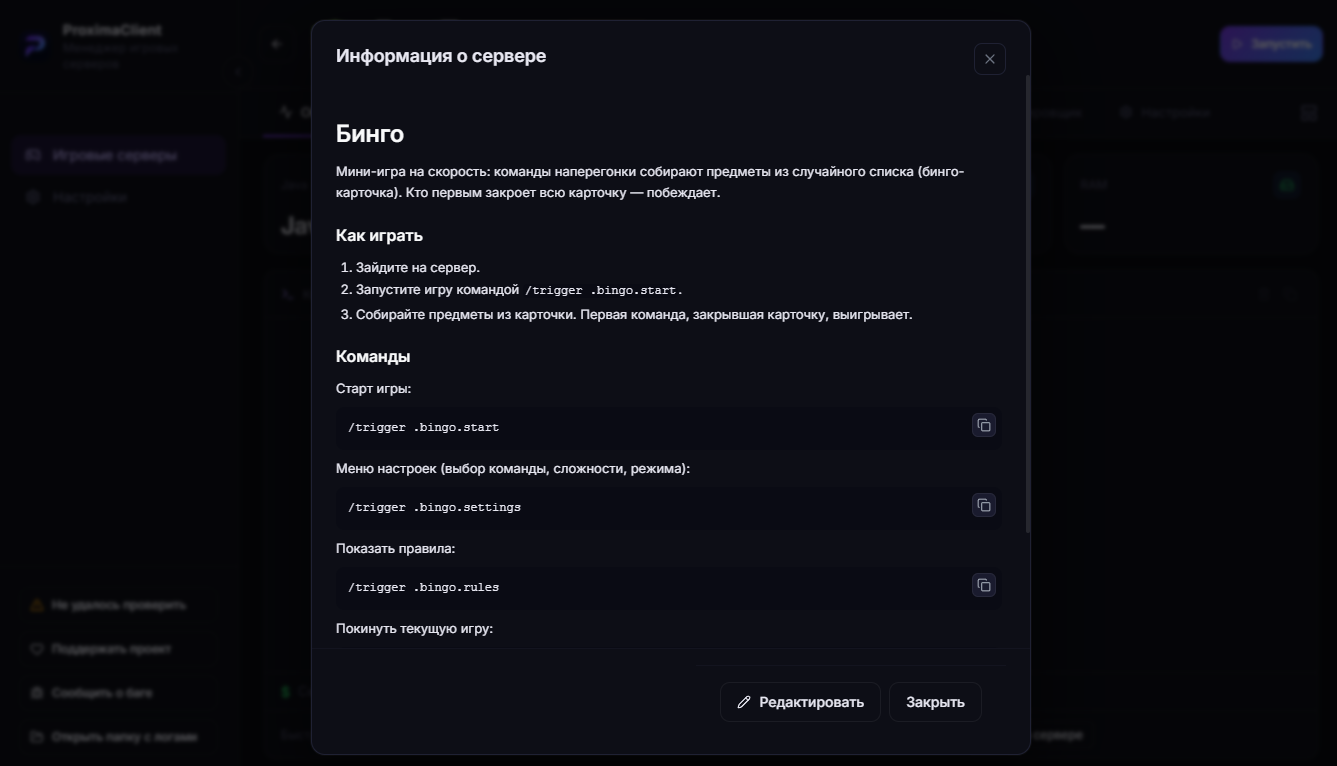
The file supports Markdown
readme.md is plain Markdown: headings, lists, links, emphasis. The window renders the formatting, so you can make the description tidy:
# My modpack
**Version:** 1.20.1 · Forge

## Mods
- Create
- JEI
- Sodium

## How to run
Click "Start" and connect using the address from the network tab.
What to put in the description
- the Minecraft version and core (Paper, Forge, etc.);
- the list of mods or plugins;
- how to run it and any quirks of the build;
- contacts or a link to Discord / Telegram.
Handy when handing over a build
When you pass a build to a friend, a team or a buyer, the instructions are already inside the server. No need to explain anything separately: the person opens the server in ProximaClient and sees the description right away.
FAQ
Where should the file go? In the root of the server folder, next to server.properties.
What should the file be named? readme.md or README.md — the case matters, other variants won't be picked up.
Is formatting supported? Yes, the file is rendered as Markdown — headings, lists, links.
The ⓘ icon didn't appear? Check that the file is named exactly readme.md (or README.md) and sits in the server root.
Try it in ProximaClient
ProximaClient is a free launcher for creating and managing Minecraft servers. Download for Windows →