
Minecraft server closes immediately: accept the EULA
Also available in: Русский
Started your Minecraft server for the first time, and it created a few files and closed right away? It's not broken — you need to accept the license agreement (EULA). Here's how to do it manually and in a couple of clicks with ProximaClient.
The console shows this:
[ServerMain/INFO]: You need to agree to the EULA in order to run the server. Go to eula.txt for more info.
Why the server closes
On the first launch the server creates files (including eula.txt) and stops immediately: Mojang requires you to confirm your agreement to the Minecraft license before running a server. Until you agree, the server won't start.
How to accept the EULA manually
-
Open the server folder.
-
Open the
eula.txtfile (it appeared after the first launch). -
Change the line
eula=falseto:eula=true -
Save the file and start the server again.
eula.txtcontains a link to the agreement itself —https://aka.ms/MinecraftEULA. By settingeula=trueyou confirm that you agree to it.
With ProximaClient — no config editing
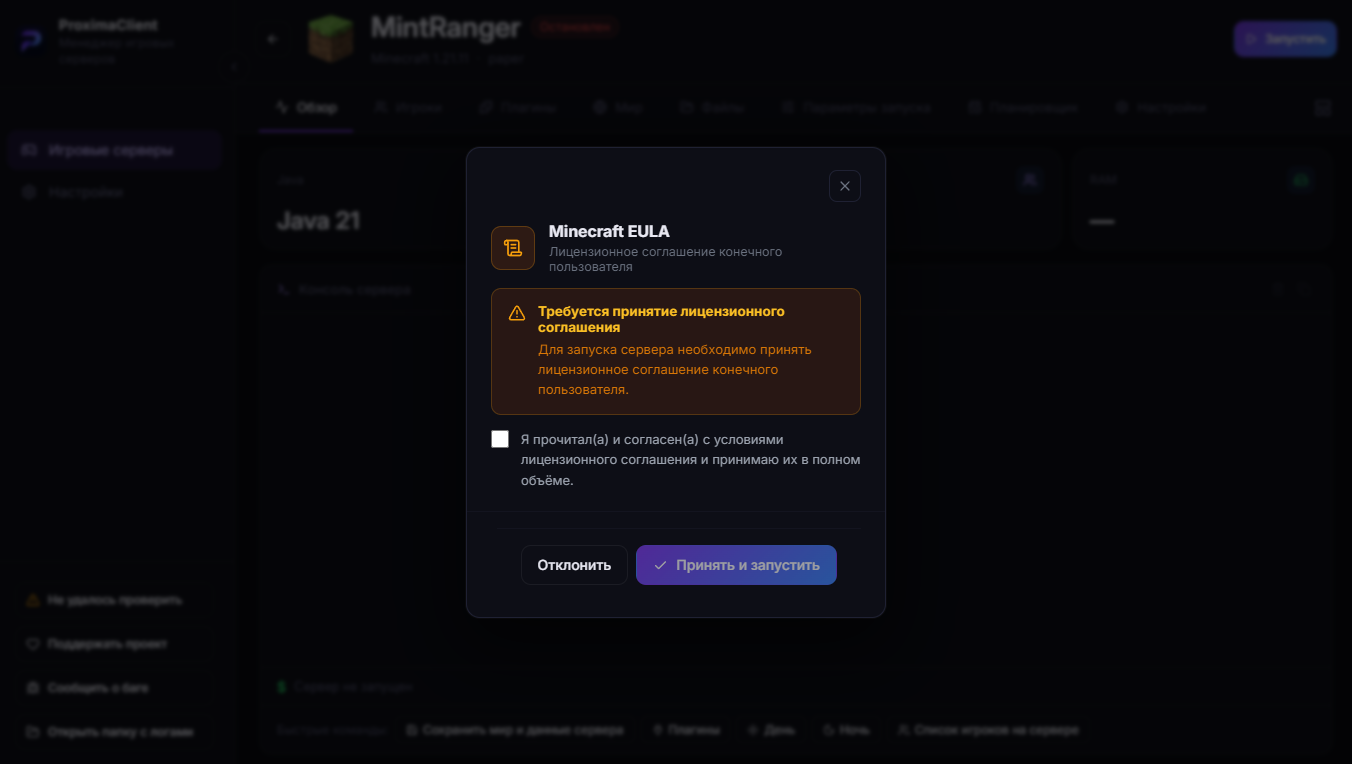
In ProximaClient you don't need to touch eula.txt: the app shows a modal to accept the EULA — you tick the box, confirm, and the server starts.
FAQ
Where is eula.txt? In the server folder. It appears after the first launch — so run the server once first, then edit the file.
There's no eula.txt file? Run the server once — it will create the file and close, after which the file will be there.
What am I agreeing to? The Minecraft End User License Agreement (EULA) by Mojang — it's a required condition for running any server.
Can I run the server without accepting the EULA? No. The server won't start until eula=true is set.
Easier — with ProximaClient
ProximaClient accepts the EULA in a modal and starts the server in a couple of clicks — no file editing. If you're just creating a server, start with the How to create a Minecraft server on your PC guide. Download ProximaClient →